Spinifex EKS AI Platform on Dual RTX Pro 6000 Baremetal
Deploy a GPU-accelerated AI inference platform — an OpenAI-compatible LLM API and a real-time CV stream — on Kubernetes on bare metal with standard AWS tooling.
Overview
Spinifex is an open-source infrastructure platform that brings core AWS services such as EC2, S3, EBS and EKS, to bare-metal, edge, and on-prem deployments. It exposes a fully AWS-compatible API, so any tooling that works against AWS — the aws CLI, OpenTofu, kubectl — works against a Spinifex node unchanged, with a single profile swap.
This guide walks through the use of Spinifex to deploy a self-contained AI inference platform on Supermicro's bare metal X14 platform using only standard AWS tooling. We use Terraform to create resources (wrapped in simple make commands) in the exact same way you would create AWS resources.
Specifically, we create an EKS cluster with two worker nodes, each consisting of a g7e.2xlarge EC2 instance with an attached GPU via VFIO passthrough, an ALB to route traffic to each node, ECR for storing and managing our workload images, and all of the associated security and certificate management requirements (IAM, ACM) you would expect from real AWS.
Platform
| Component | Specification |
|---|---|
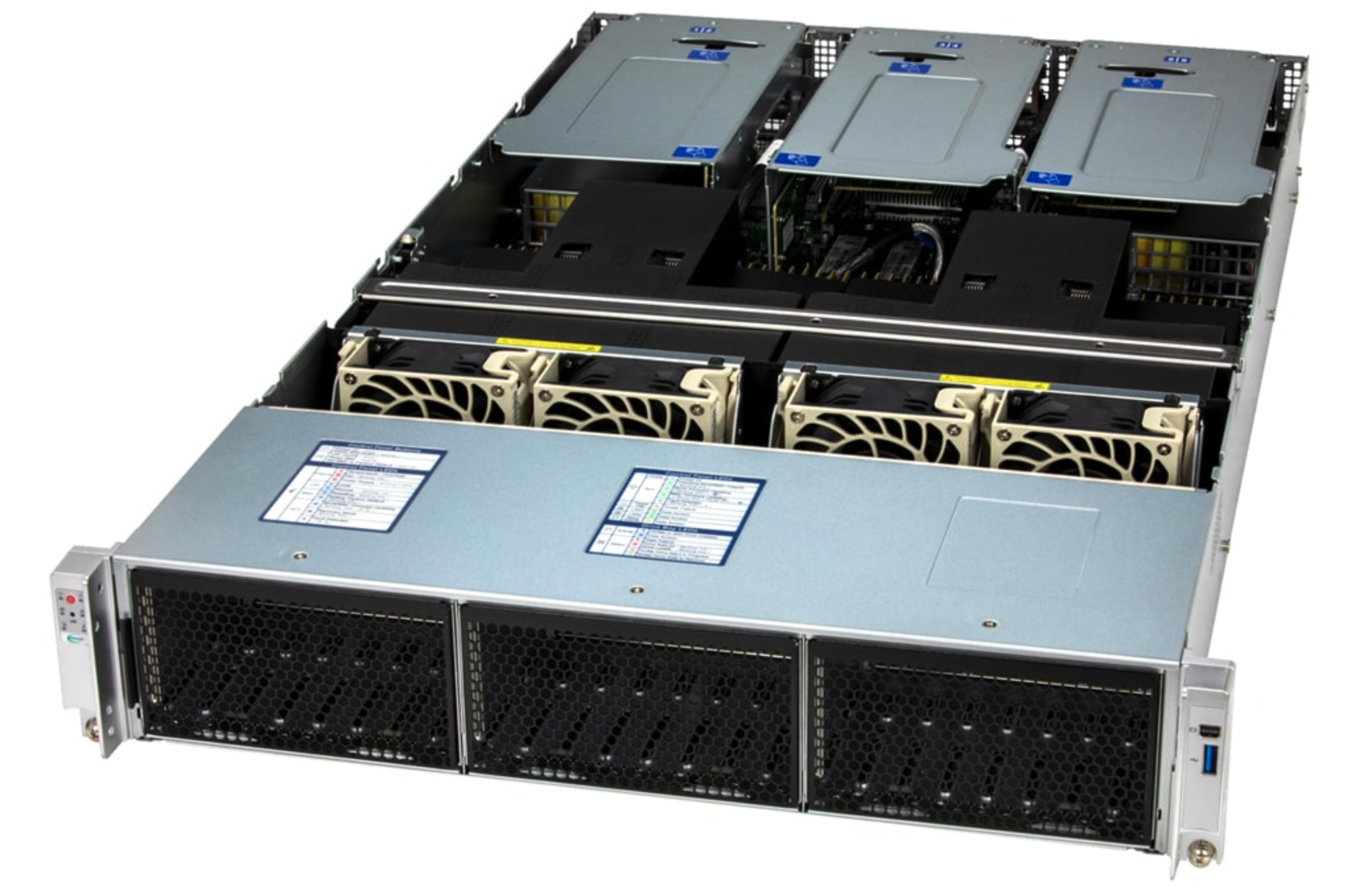
| Chassis | Supermicro X14 2U CloudDC with 2× Intel Xeon 6730P |
| Memory | 8 × 64 GB DDR5 6400 MHz ECC RDIMM (512 GB total) |
| GPUs | 2× NVIDIA RTX Pro 6000 Blackwell Server Edition (96 GiB GDDR7 each, 192 GiB total) |
| Storage | 4× NVMe SSD: 2× 1.5 TB, 2× 880 GB — one 1.5 TB drive carries the OS; the remaining three back Predastore |
| Spinifex instance family | g7e — one RTX Pro 6000 per instance via VFIO PCIe passthrough |
| Kubernetes | k3s, managed via Spinifex EKS API |
| API endpoint | https://<host>:9999 (AWS-compatible) |
Workloads
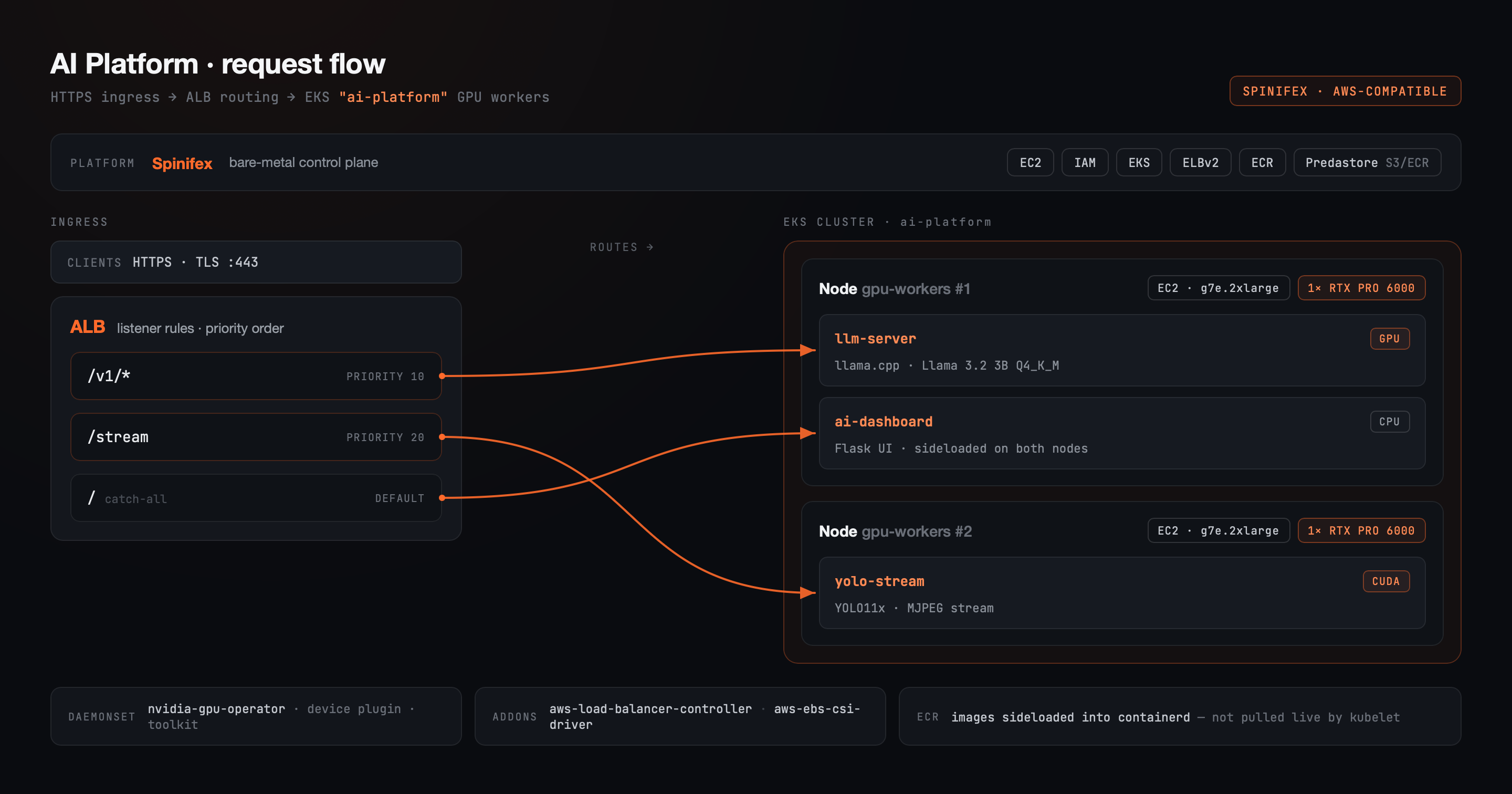
Three workloads run in the inference namespace of an EKS cluster backed by two GPU worker nodes:
| Pod | Role | GPU | Model | Image source |
|---|---|---|---|---|
llm-server | OpenAI-compatible chat API (llama.cpp) | 1× RTX Pro 6000 | Llama 3.2 3B Instruct Q4_K_M GGUF | ECR llm-server:latest |
yolo-stream | MJPEG object-detection stream (CUDA) | 1× RTX Pro 6000 | YOLO11x | ECR yolo-stream:latest |
ai-dashboard | Web UI: chat + live detection feed | CPU only | — | ECR ai-dashboard:latest |
Both GPU workloads bake their model weights into the Docker image at build time — llm-server's GGUF weights (~2 GiB) and yolo-stream's YOLO11x checkpoint (~109 MB) are present in the image when it starts.
yolo-stream renders a 1280×720 sample video through YOLO11x once on startup (~25 s), caches the annotated frames in memory, then serves /stream from that cache — smooth MJPEG playback decoupled from per-frame inference cost after the initial warm-up.
In this case, the two workloads demonstrated could both run comfortably on a single RTX Pro 6000 with ample headroom. However, this reference architecture primarily seeks to show how Spinifex can use EKS to provision infrastructure with resources in mind - With one RTX Pro 6000 per node and both pods requesting nvidia.com/gpu: "1", the scheduler assigns one GPU and one workload per node. Thus if larger models were used (such as Llama 3.3 70B, Q4_K_M, ~40 GiB for the LLM workload), Spinifex's EKS implementation would ensure the worker nodes do not compete for resources.
Architecture
AWS services exercised
| Service | Role |
|---|---|
| IAM | Cluster role, node role (with ECR, LBC, EBS-CSI permissions inline), viewer access entry |
| ECR | Private registry for all three images; source of truth for builds, though nodes receive images via sideload rather than live OCI pull for this demo |
| EC2 | 2× GPU microVM (g7e.2xlarge), one RTX Pro 6000 each via VFIO PCIe passthrough |
| EKS | Cluster, GPU nodegroup (desired_size = 2), LBC and EBS-CSI managed addons, access entries |
| ELBv2 | ALB provisioned by the LBC addon; single shared IngressGroup across all three services |
| ACM | Self-signed cert (ai-platform.spinifex.local) imported and attached to the ALB HTTPS listener |
| EBS (Viperblock) | 200 GB root volume per GPU worker node, provisioned by the nodegroup (disk_size = 200) |
All permissions for the LBC and EBS-CSI addons are attached directly to the node role. Both addons support IRSA, but fall back to the node's instance profile when no service_account_role_arn is supplied — sufficient for a single-cluster deployment.
Prerequisites
On the Spinifex host
1. Install Spinifex
Follow the Single Node Install guide. This installs Spinifex and starts all services.
2. Configure spinifex.toml and restart services
Spinifex uses OVN for bridged networking. EC2 instances receive IP addresses from a pool configured in spinifex.toml. For a standard install, reserve a range of addresses from your local network — either a static block or let Spinifex request addresses from an upstream DHCP server:
[network]
external_mode = "pool"

[[network.external_pools]]
name        = "wan"
source      = "static"          # or "dhcp" to use an upstream DHCP server
range_start = "<pool-start>"
range_end   = "<pool-end>"
gateway     = "<upstream-gateway>"
prefix_len  = <prefix>
dns_servers = ["8.8.8.8"]
Then restart all services:
sudo systemctl restart spinifex.target
sudo systemctl status spinifex.target
See the VPC Networking guide for full configuration options.
3. Bind the GPUs to VFIO
sudo spx admin gpu setup
# Reboot, then:
sudo spx admin gpu enable
Confirm both GPUs are bound:
lspci -d 10de: -nn
# Expect: NVIDIA Corporation Device [10de:2bb5] appearing twice
4. Attach Predastore storage
The X14 has four NVMe drives: two 1.5 TB SSDs (one carries the OS) and two ~880 GB SSDs. The OS occupies its own dedicated NVMe; the remaining three drives are pre-formatted and already mounted at /mnt/nvme-1, /mnt/nvme-2, and /mnt/nvme-3. Predastore spreads object shards across these three drives — one blob node per physical drive, with Reed–Solomon redundancy so a single drive failure is recoverable.
A single-node install is one Predastore host running seven nodes, each with a directory named for its node ID under /var/lib/spinifex/predastore/cluster. The three blob nodes are node-2, node-3 and node-4, so nvme-$i takes node-$((i + 1)). The gate keeps no data at all, and the three meta nodes hold only the Raft log for buckets and the object index, which is small enough to leave on the OS drive.
Relocate the blob node directories onto the mounted drives:
sudo systemctl stop spinifex.target

for i in 1 2 3; do
  node="node-$((i + 1))"
  sudo mv /var/lib/spinifex/predastore/cluster/$node /mnt/nvme-$i/$node
  sudo ln -s /mnt/nvme-$i/$node /var/lib/spinifex/predastore/cluster/$node
done

sudo systemctl start spinifex.target
Verify the nodes are healthy before proceeding:
export AWS_PROFILE=spinifex
aws s3 ls
# Should return without error (empty bucket list is fine)
Future direction: Predastore will support ZFS for cross-disk redundancy on a single node, eliminating the need for Step 4 and reserving Predastore's Reed–Solomon for the multi-node level.
5. Verify the GPU instance type
sudo spx admin gpu statusThis will print confirmation that GPU passthrough has been configured correctly along with the available GPU instance types. The RTX Pro 6000 Blackwell Server Edition (PCI device 10de:2bb5) maps to the g7e family. The workbook defaults to g7e.2xlarge (one GPU per node); override with GPU_TYPE=g7e.4xlarge (or the size your host reports) if needed. Do not use g7e.12xlarge — that is the 2× GPU size.
Local tooling
Clone the workbook
git clone https://github.com/mulgadc/eks-ai-platform
cd eks-ai-platform
Instructions
1. Import the EKS GPU node AMI
GPU worker nodes require the ecr-credential-provider binary so kubelet can call GetAuthorizationToken against ECR. This binary is included in the dedicated EKS GPU node AMI in the Spinifex image catalogue. List available images and import it:
spx admin images list
# Look for the EKS GPU node image

spx admin images import --name spinifex-eks-node-gpu
Confirm the AMI is registered:
aws ec2 describe-images --query 'Images[*].[Name,ImageId]' --output table2. Provision the cluster
make infra ENDPOINT=https://<host>:9999This provisions the VPC (10.33.0.0/16, two public and two private subnets with a NAT gateway), IAM roles, ECR repositories, EKS cluster, GPU nodegroup (2× g7e.2xlarge, 200 GB disk each), LBC and EBS-CSI managed addons, a self-signed ACM certificate, and the NodePort security group rules the ALB needs to reach the worker nodes.
Update your kubeconfig once the cluster reports ACTIVE:
$(tofu -chdir=workbook output -raw update_kubeconfig)
kubectl get nodes
# Expect: 2 Ready nodes in the gpu-workers nodegroup
The Makefile wraps tofu -chdir=workbook apply -var spinifex_endpoint=... -var gpu_instance_type=... — running Tofu directly is equivalent and lets you pass any additional variables. The workbook provisions aws_vpc, aws_subnet (two public, two private), aws_eks_cluster, aws_eks_node_group (two g7e.2xlarge nodes, each with a 200 GB Viperblock root volume via disk_size = 200), aws_eks_addon for LBC and EBS-CSI, three aws_ecr_repository resources, three IAM roles, and a self-signed aws_acm_certificate — all via Spinifex's AWS-compatible endpoint at :9999.
The full workbook is at workbook/main.tf. The AWS provider points all standard API calls at Spinifex's endpoint — the same Terraform resources that work on AWS work here unchanged:
provider "aws" {
  endpoints {
    ec2 = var.spinifex_endpoint
    iam = var.spinifex_endpoint
    sts = var.spinifex_endpoint
    eks = var.spinifex_endpoint
    ecr = var.spinifex_endpoint
    acm = var.spinifex_endpoint
  }
}

resource "aws_eks_cluster" "this" {
  name     = var.cluster_name
  role_arn = aws_iam_role.cluster.arn
  version  = var.k8s_version

  access_config {
    authentication_mode = "API"
  }
}

resource "aws_eks_node_group" "gpu_workers" {
  cluster_name   = aws_eks_cluster.this.name
  instance_types = [var.gpu_instance_type]  # g7e.2xlarge — one RTX Pro 6000 per node
  disk_size      = 200

  scaling_config {
    desired_size = 2
    min_size     = 2
    max_size     = 2
  }
}3. Build and push container images
make imagesThis authenticates to ECR, then builds and pushes all three images:
llm-server— based onghcr.io/ggml-org/llama.cpp:server-cuda; downloads Llama 3.2 3B Instruct Q4_K_M GGUF (~2 GiB) from Hugging Face at build time and bakes it into the image. Exposes an OpenAI-compatible/v1/chat/completionsAPI.yolo-stream— based onpytorch/pytorch:2.7.1-cuda12.8-cudnn9-runtime; installs Ultralytics and downloads YOLO11x weights at build time. PyTorch 2.7.1+cu128 is required: the RTX Pro 6000 Blackwell is compute capability sm_120, and earlier PyTorch releases ship no sm_120 kernels.ai-dashboard— lightweight Flask proxy (FROM python:3.11-slim) that aggregates the LLM API and YOLO stream into a single page.
The ECR registry URI always includes :9999 — for example, <account>.dkr.ecr.ap-southeast-2.<suffix>:9999. Use the ecr_registry Tofu output directly in docker login and image references; do not construct the hostname manually.
Image URIs come from tofu -chdir=workbook output -raw ecr_registry. ECR authentication uses the same API as AWS: aws ecr get-login-password calls GetAuthorizationToken against the Spinifex ECR endpoint and returns a short-lived JWT that Docker accepts as a registry password. The make images target is equivalent to running those docker build and docker push commands directly against $REGISTRY from that Tofu output.
The three ECR repositories are provisioned by the infra workbook:
locals {
  ecr_repos = toset(["llm-server", "yolo-stream", "ai-dashboard"])
}

resource "aws_ecr_repository" "app" {
  for_each     = local.ecr_repos
  name         = each.key
  force_delete = true
}
4. Sideload images onto GPU worker nodes
make sideloadECR is the source of truth for all three images — authentication, push, and registry management all work identically to AWS. In a standard EKS deployment, nodes would pull images directly from ECR at scheduling time. In this demo, live pulls of these image sizes (~2 GiB for llm-server, ~4.5 GiB for yolo-stream) through the Spinifex ECR gateway proved unreliable — large transfers stalled or failed mid-stream, a combination of network conditions on this single-host setup and a rough edge in early Spinifex ECR support. This step works around that by staging the images directly into each node's containerd store before the pods are scheduled.
It exports each image from the local Docker daemon, serves the tarballs over HTTP from the Spinifex host, and imports them directly into each worker node's containerd store via short-lived privileged pods. All three Deployments use imagePullPolicy: IfNotPresent and depend on the images already being present in containerd.
The script also labels the two GPU nodes deterministically (workload=llm-server / workload=yolo-stream, sorted by node name), and the Deployments use matching nodeSelector values so each pod lands on the node that already has its image. ai-dashboard has no GPU requirement and is imported on both nodes since it can schedule onto either.
Expect several minutes for yolo-stream's image (CUDA + PyTorch + YOLO11x weights, ~4.5 GiB).
This step has no Tofu equivalent — it operates directly on the running cluster via kubectl. The ECR registry URI is read from the Tofu state; node labelling uses kubectl label and image import uses short-lived privileged pods that run ctr images import into each node's containerd store.
5. Deploy workloads
make workloads ENDPOINT=https://<host>:9999This deploys the NVIDIA GPU Operator via Helm, then all three application Deployments, ClusterIP and NodePort services, and the shared ALB Ingresses.
The GPU Operator requires two adjustments for k3s:
driver.enabled=false— the NVIDIA driver is pre-built into the GPU AMI at image creation time; the Operator installs only the toolkit and device plugin.CONTAINERD_SOCKET=/run/k3s/containerd/containerd.sock— k3s bundles its own containerd at a different socket and config path than the standalone containerd default. Without this override the toolkit DaemonSet crash-loops withno such file or directory.
Watch the GPU Operator complete, then the inference pods come up:
kubectl -n gpu-operator get pods -w
kubectl -n inference get pods -w
Confirm each GPU node reports nvidia.com/gpu: 1 in allocatables:
$(tofu -chdir=workbook output -raw gpu_verify_hint)All three routes share a single ALB via alb.ingress.kubernetes.io/group.name. Explicit group.order values (/v1 = 10, /stream = 20, / = 100) ensure the dashboard's catch-all path evaluates last — without them, the LBC sorts Ingress resources alphabetically, which places the catch-all first and swallows the other routes.
Retrieve the ALB IP (the DNS name *.elb.spinifex.local is a label, not a resolvable entry):
$(tofu -chdir=workbook output -raw alb_ip_hint)
ALB_IP=<output>
Validate the LLM endpoint:
curl -sk https://$ALB_IP/v1/chat/completions \
  -H "Content-Type: application/json" \
  -d '{"model":"llama-3.2-3b-instruct","messages":[{"role":"user","content":"What is Spinifex?"}]}' \
  | python3 -m json.tool
Open https://$ALB_IP/ to reach the dashboard. If accessing from a remote machine:
ssh -L 8443:$ALB_IP:443 <spinifex-host>
# Open https://ai-platform.spinifex.local:8443/
# Add 127.0.0.1 ai-platform.spinifex.local to /etc/hosts if the browser requires hostname match
The workloads module reads cluster coordinates, ECR image URIs, NodePort values, and the ACM cert ARN from the parent module's Tofu state, then creates the NVIDIA GPU Operator helm_release, three kubernetes_deployment_v1 resources, six kubernetes_service_v1 resources (ClusterIP + NodePort per workload), and three kubernetes_ingress_v1 resources — all through the Terraform Kubernetes and Helm providers, which authenticate to the cluster via aws eks get-token.
The full workloads module is at workbook/workloads/main.tf. Each GPU pod requests one nvidia.com/gpu resource — the scheduler enforces the one-per-node split automatically — and all three services share a single ALB provisioned by the Load Balancer Controller via standard Kubernetes ingress annotations:
container {
  image = local.images.llm_server  # ECR URI from parent module state
  resources {
    limits   = { "nvidia.com/gpu" = "1", memory = "8Gi" }
    requests = { "nvidia.com/gpu" = "1", memory = "4Gi" }
  }
}

resource "kubernetes_ingress_v1" "llm" {
  metadata {
    annotations = {
      "alb.ingress.kubernetes.io/group.name"      = local.alb_group
      "alb.ingress.kubernetes.io/group.order"     = "10"
      "alb.ingress.kubernetes.io/certificate-arn" = local.cert_arn
      "alb.ingress.kubernetes.io/listen-ports"    = "[{\"HTTPS\":443}]"
    }
  }
  spec {
    rule { http { path { path = "/v1"; path_type = "Prefix" } } }
  }
}
Dashboard
After the successful completion of the make workloads step, the dashboard should be available and displaying the outputs of the two worker nodes; YOLO computer vision in the left pane, and a LLM chat in the right pane, as shown in the images below.
6. Teardown
make destroy ENDPOINT=https://<host>:9999Workloads are destroyed before infra. Both GPU worker instances terminate, immediately returning their RTX Pro 6000s to the Spinifex pool.
The Makefile runs the two-module destroy sequence — tofu -chdir=workbook/workloads destroy first, then tofu -chdir=workbook destroy — because the parent module's security group rules are referenced by the ALB created in the workloads layer. Running Tofu directly in that order is equivalent.
Troubleshooting
llm-server or yolo-stream pod stuck in Pending
The GPU Operator DaemonSet must complete before nvidia.com/gpu appears in node allocatables:
kubectl -n gpu-operator get daemonset -w
kubectl get node -o custom-columns=NAME:.metadata.name,GPU:.status.allocatable.'nvidia\.com/gpu'
If a pod shows Insufficient nvidia.com/gpu on a node that looks healthy, the workload= labels from make sideload may be stale — for example, after a nodegroup recreation that assigned new node names. Re-run make sideload to relabel the nodes and re-import the images.
GPU worker instances fail to launch (bind ... to vfio-pci: invalid argument)
On hosts where the GPU's IOMMU group contains an upstream PCIe root-port bridge (no ACS isolation), Spinifex attempts to bind the bridge to vfio-pci. Bridges are non-endpoint devices that vfio-pci refuses to bind, causing the instance to crash immediately after launch:
GPU claim failed... bind IOMMU group member 0000:14:02.0: bind 0000:14:02.0 to vfio-pci: invalid argumentCheck IOMMU group membership with lspci -nnk and /sys/kernel/iommu_groups/*/devices/. This is fixed in Spinifex by excluding bridge-class PCI devices from the bind lifecycle — ensure your Spinifex build includes that fix. If the failed bind left a bridge without a driver, restore it:
echo | sudo tee /sys/bus/pci/devices/<bridge-addr>/driver_override
echo <bridge-addr> | sudo tee /sys/bus/pci/drivers/pcieport/bind
If the nodegroup got wedged in CREATING after hitting this, delete it and let Terraform recreate it:
aws eks delete-nodegroup --cluster-name ai-platform --nodegroup-name gpu-workersNodegroup stuck CREATING with healthy nodes, Tofu times out
tofu apply hangs for 20 minutes and fails with workers did not become Ready: timed out, even though kubectl get nodes shows both workers Ready. The cause is a missing eks.amazonaws.com/nodegroup label on the node — without it, the control plane never tallies the nodegroup as satisfied. Confirm with:
kubectl get node <worker> -o jsonpath='{.metadata.labels}'This is fixed upstream in Spinifex. If stuck, delete both the nodegroup and cluster and let Terraform recreate them cleanly:
aws eks delete-nodegroup --cluster-name ai-platform --nodegroup-name gpu-workers
aws eks delete-cluster --name ai-platform
ALB returns 502 immediately after rollout
Both llm-server and yolo-stream require a few seconds after container start before their readiness probes pass — CUDA and GPU Operator initialisation contribute to the delay. The ALB marks targets unhealthy during this window. Watch the pods become ready:
kubectl -n inference get pods -w
kubectl -n inference logs -f deploy/llm-server
Conclusion
This guide demonstrates how Spinifex turns a single bare-metal chassis into a production-shaped AI serving platform managed entirely with standard AWS tooling. IAM roles, ECR repositories, an EKS cluster, GPU worker nodes, addons, and an ALB are all provisioned with the same Terraform resources and AWS CLI commands that work on real AWS — with a single AWS_PROFILE swap.
The RTX Pro 6000 Blackwell Server Edition's 96 GiB GDDR7 fits substantial GPU workloads in a single PCIe slot, and Spinifex's g7e instance family exposes each GPU as a standard EC2 instance. Teams already operating AWS infrastructure can point their existing tooling at a Spinifex node and retain the full EKS workflow — from aws ecr get-login-password to kubectl get ingress — on hardware they own. ECR acts as the canonical registry throughout: image build, push, and authentication are identical to AWS, with direct kubelet pulls being the intended path as Spinifex's ECR gateway matures.