GPU Passthrough
Configure VFIO GPU passthrough on a Spinifex node to bind NVIDIA or AMD GPUs to guest VMs and expose GPU-enabled EC2 instance types to your workloads.
Overview
Spinifex supports VFIO-based GPU passthrough, binding NVIDIA and AMD GPUs directly to guest VMs via the vfio-pci kernel driver. Once configured, the node exposes GPU-enabled EC2 instance types and the GPU is allocated exclusively to individual instances.
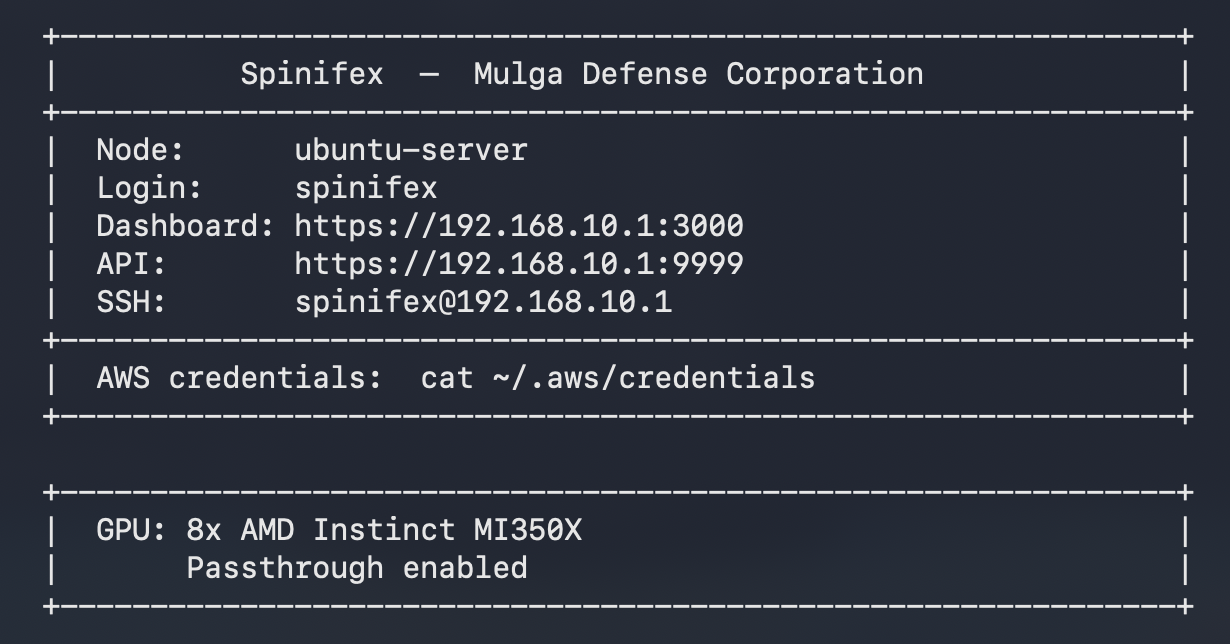
At startup, Spinifex always probes for GPU hardware and surfaces the result in the node banner and in spx top nodes — regardless of whether passthrough is enabled. This lets operators verify hardware before activating the feature.
The passthrough state is reflected in the login banner:

Note: GPU passthrough is supported on x86_64 hosts only.
Prerequisites
- IOMMU must be supported and enabled in the host BIOS/UEFI (
Intel VT-dorAMD-Vi). - An NVIDIA or AMD GPU must be physically installed.
- The Spinifex node must be running on bare metal (not inside a VM).
Instructions
Host Setup
Run the one-time host configuration as root. This command is idempotent — safe to re-run after a reboot.
sudo spx admin gpu setupWhat it does:
- Detects installed GPUs and their PCI IDs.
- Enables IOMMU in GRUB (
intel_iommu=on iommu=ptoramd_iommu=on iommu=pt). - Writes the vfio udev rule (
/etc/udev/rules.d/99-spinifex-vfio.rules). - Blacklists
nouveau(NVIDIA) andamdgpu(AMD) so the host kernel does not claim the device. - Configures
vfio-pciearly binding in/etc/modprobe.d/vfio-pci.conf. - Adds vfio modules to initramfs.
If any change requires a reboot, the command prints instructions and exits:
Setup complete — reboot required.
  sudo reboot
  Then run: sudo spx admin gpu enable
Enable Passthrough
After setup and reboot, enable GPU passthrough:
sudo spx admin gpu enableThe command writes the configuration, notifies the daemon and waits up to 30 seconds for the daemon to confirm the new state. On success it prints the current GPU status.
Status and Monitoring
Per-node status:
spx admin gpu status
# or for a specific node in the cluster:
spx admin gpu status --node <node-name>
Output includes hardware detected, IOMMU state, vfio-pci binding, passthrough enabled/disabled, GPU pool allocation (allocated/total), and the GPU-capable EC2 instance types available on that node.
Cluster view:
spx top nodes includes a GPU (used/total) column:
| Value | Meaning |
|---|---|
1/2 | Passthrough active — 1 of 2 GPUs allocated |
0/1* | Node has a GPU but passthrough is not enabled |
- | No GPU hardware detected |
spx top nodesGPU Instance Types
GPU instance types are derived from detected hardware. To list available GPU instance types on the current node:
aws ec2 describe-instance-types \
  --filters Name=instance-type,Values=g*
Launching GPU Instances
Spinifex ships two pre-built GPU guest images. Import the one that matches your host hardware before launching:
spx admin images import --name ubuntu-26.04-nvidia-gpu-x86_64   # NVIDIA hosts
spx admin images import --name ubuntu-26.04-amd-gpu-x86_64      # AMD hosts
These images are built on Ubuntu 26.04 and serve as a base for GPU workloads. Both include Docker CE, Python 3, and common utilities (git, curl, htop, tmux, ffmpeg).
NVIDIA (ubuntu-26.04-nvidia-gpu-x86_64): NVIDIA server driver with DKMS pre-built against the image kernel, nvidia-smi, nvidia-container-toolkit wired into Docker (--gpus all works on first boot). CUDA toolkit and cuDNN are not included — use an NGC container or install inside the instance.
AMD (ubuntu-26.04-amd-gpu-x86_64): linux-firmware (amdgpu firmware blobs), ROCm 7.2 CLI tools (rocm-smi, rocminfo, amd-smi). Full ROCm compute libraries (rocblas, etc.) are not included — install inside the instance as needed.
Launch a GPU instance:
aws ec2 run-instances \
  --image-id $GPU_AMI \
  --instance-type $INSTANCE_TYPE \
  --key-name spinifex-key
To verify the GPU is visible from inside the instance, SSH in and run:
# NVIDIA
nvidia-smi

# AMD
rocm-smi
Disable Passthrough
Passthrough cannot be disabled while GPU instances are running. Terminate all GPU instances first, then:
sudo spx admin gpu disableThe command signals the daemon and waits for confirmation. The GPU is released back to the host kernel on the next reboot (the vfio-pci binding persists until setup is re-run without the blacklists).
Troubleshooting
IOMMU not active after reboot
Verify IOMMU is enabled in BIOS/UEFI (Intel VT-d or AMD-Vi). Then check GRUB picked up the parameters:
cat /proc/cmdline | grep iommu
ls /sys/kernel/iommu_groups/
If /sys/kernel/iommu_groups/ is empty, IOMMU is not active. Re-run sudo spx admin gpu setup after enabling it in firmware.
GPU bound to native driver instead of vfio-pci
lspci -k | grep -A3 -i "vga\|3d\|display"If the driver is amdgpu or nvidia rather than vfio-pci, the blacklist or early binding did not take effect. Re-run setup and reboot:
sudo spx admin gpu setup
sudo reboot
spx admin gpu enable fails with "prerequisites not met"
Run setup first to configure the host, then retry enable:
sudo spx admin gpu setup
sudo spx admin gpu enable
Daemon does not confirm within 30 seconds
Check the daemon log for errors:
journalctl -u spinifex-daemon -n 50