Bootable USB Install
Install Spinifex on bare-metal x86 hardware by flashing the Spinifex ISO to a USB drive, booting the target server from it, and wiping the disk you select.
Overview
Spinifex is designed for bare-metal hardware, edge nodes and data-centre use. Follow this guide to install Spinifex from a bootable USB using the Spinifex ISO.
Note: this tutorial is for x86 architecture.
Warning: this procedure COMPLETELY WIPES the target disk. For systems with multiple disks, ensure the correct one is targeted.
Booting Media
For this tutorial, a USB drive with at least 8GB of memory is required.
Note: flashing the Spinifex ISO onto the USB completely wipes the USB, so ensure no important data is stored on the USB used.
Balena Etcher Installation
For this tutorial download Balena Etcher to simplify the ISO flash process.
Download Spinifex ISO
Download the Spinifex ISO (x86)
Flash Media
Once installed, open Balena Etcher. Select "Flash From Image," then select the downloaded spinifex.iso file.
Next, click "Select target" and choose the USB drive to be used as the boot media. Then click "Flash!"
Balena Etcher will now flash the USB drive with the spinifex.iso file.
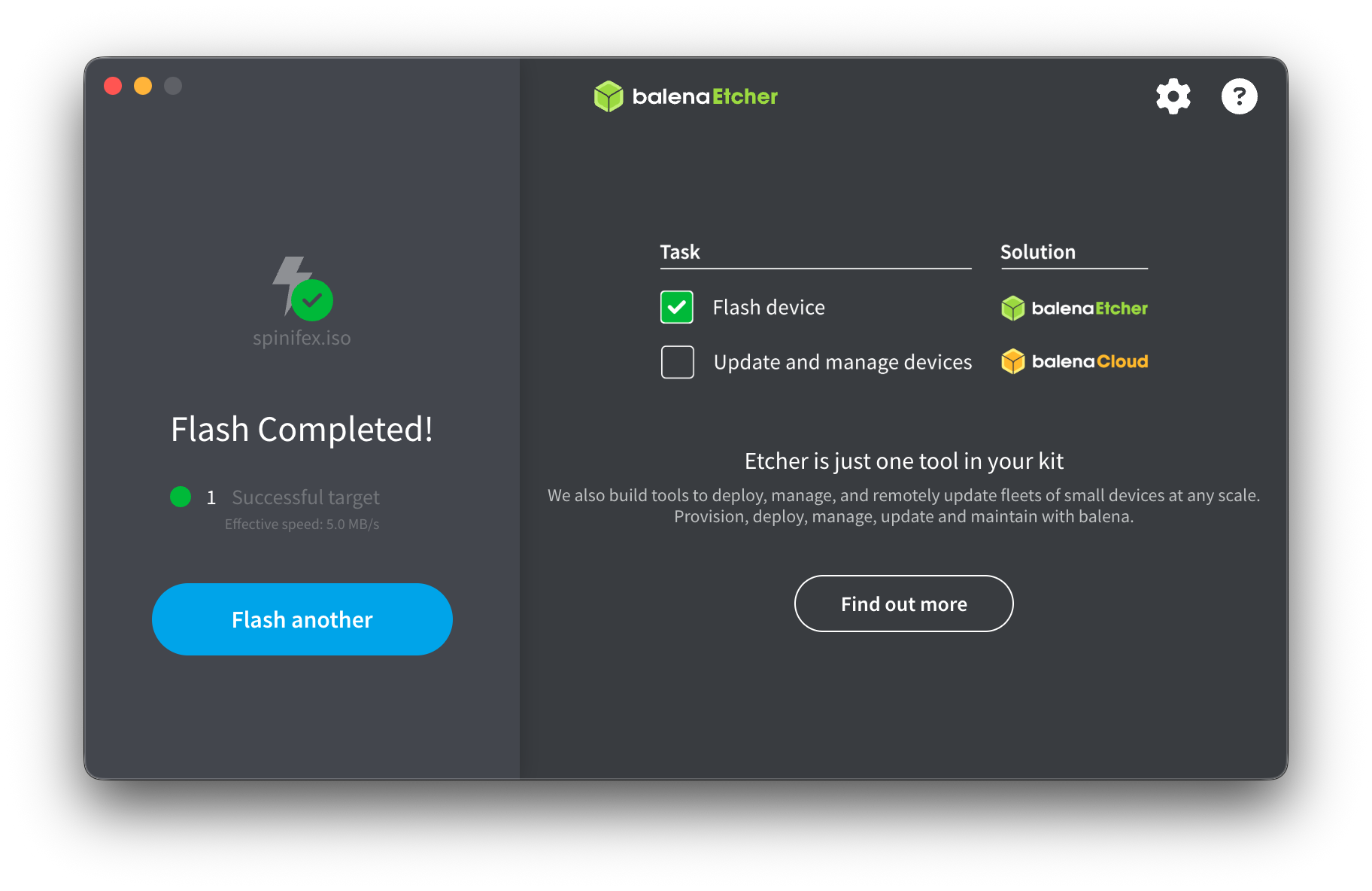
You can now safely eject the USB drive if it was not ejected automatically.
Boot From USB Drive
Insert your newly flashed USB drive into the target device and turn it on.
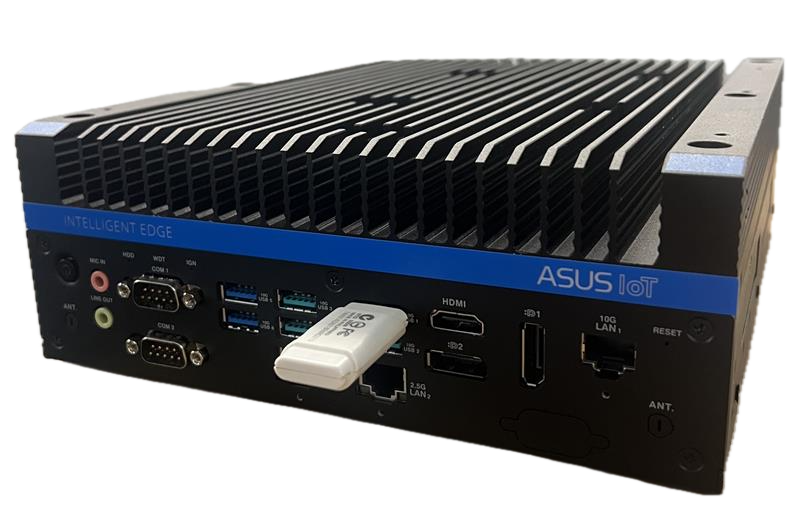
As it boots, quickly press the correct key for your device to bring up the BIOS/UEFI menu (commonly F2, F10, F12, ESC or DEL) and change the boot order such that the flashed USB drive has first priority, then continue to boot.
If done successfully, the Spinifex ISO GRUB menu will appear.
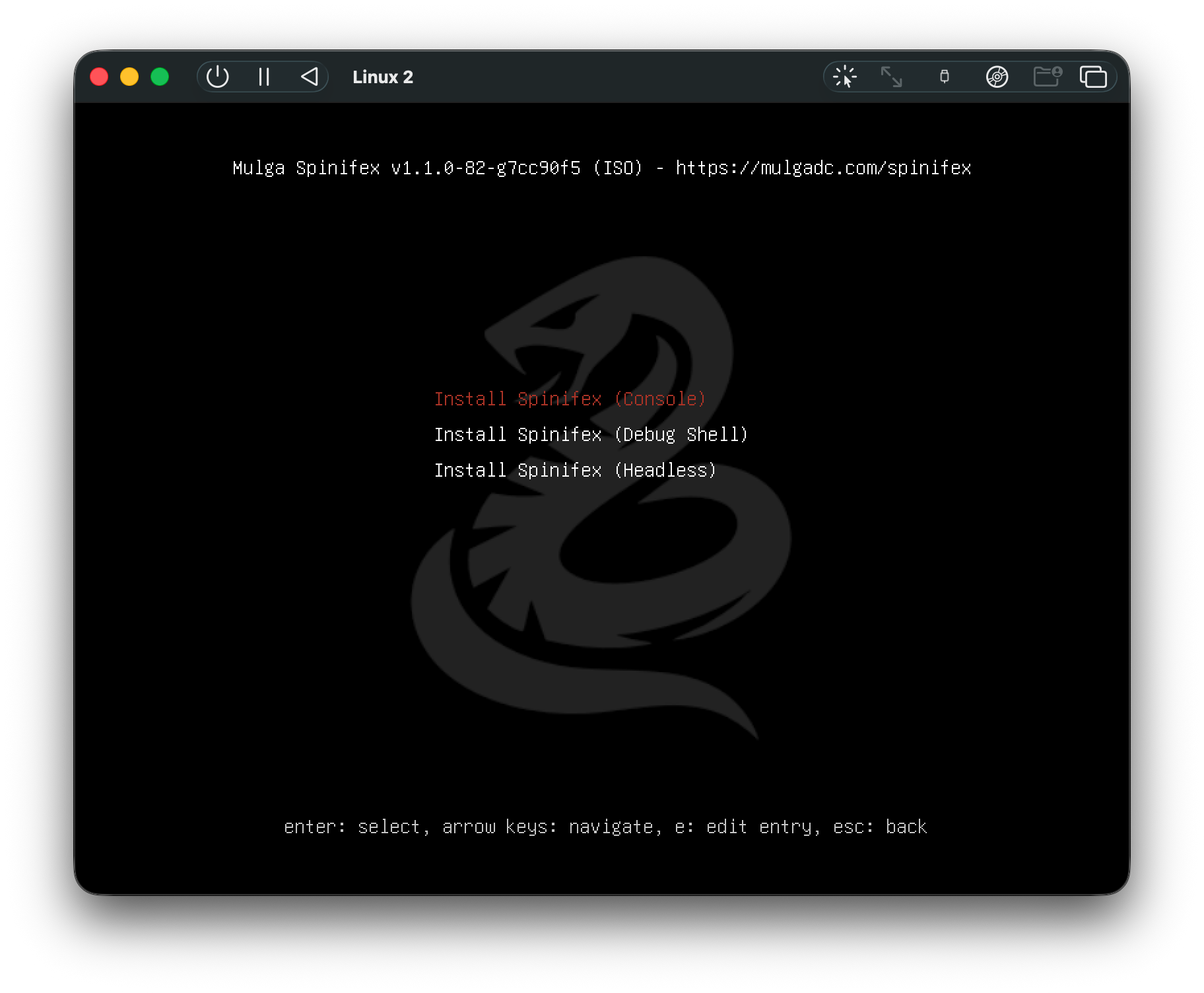
From this menu you can select which method of install is used (console recommended). Headless mode can be configured by mounting the USB on a host device after flashing and editing the grub.cfg file with the desired values.
Setting Up the Spinifex Node
In console mode, follow the installation prompts to set the required networking values for the Spinifex node.
The installer will default to the most sensible disk to install on depending on system configuration — ensure this default is correct before installation, as the process will wipe the disk.
Selected drives are erased unconditionally.
Every drive you select is taken over whatever it currently holds — an existing partition table, a filesystem with data on it, a ZFS pool member, or a previous Spinifex install. The installer unmounts anything mounted from those drives, disables swap on them, clears ZFS labels and filesystem signatures from every partition, and erases the partition table. There is no prompt beyond the confirmation screen and there is no rollback once it begins.
Drives you do not select are never touched. The confirmation screen lists each selected drive with its current contents, and that list is the last point at which the install can be stopped.
If a drive cannot be taken over — because md, LVM or device-mapper still claims it, and the ISO ships no tooling to dismantle those — the install aborts and names the drive and its holder rather than continuing against the old layout.
For network configuration, it is recommended to use automatic IP (DHCP), but this can also be configured manually.
Network interfaces will be automatically detected. In the event that none are detected, the user can manually input the name of the network interface. In the event that multiple network interfaces are detected, the installer will prompt for WAN selection first, followed by LAN.
A hostname (eg node1) and admin password must be set.
The installer does not ask about clustering, because it does not need to. It installs and configures a complete, working single node — operating system, disks, hostname, network interfaces, plane addressing, OVN networking, credentials and services — and starts it. A single-node deployment is finished when the installer is. A multi-node cluster is built by joining these servers together afterwards; see Building a Cluster below.
Once configuration is complete, a summary of the configuration will be shown.
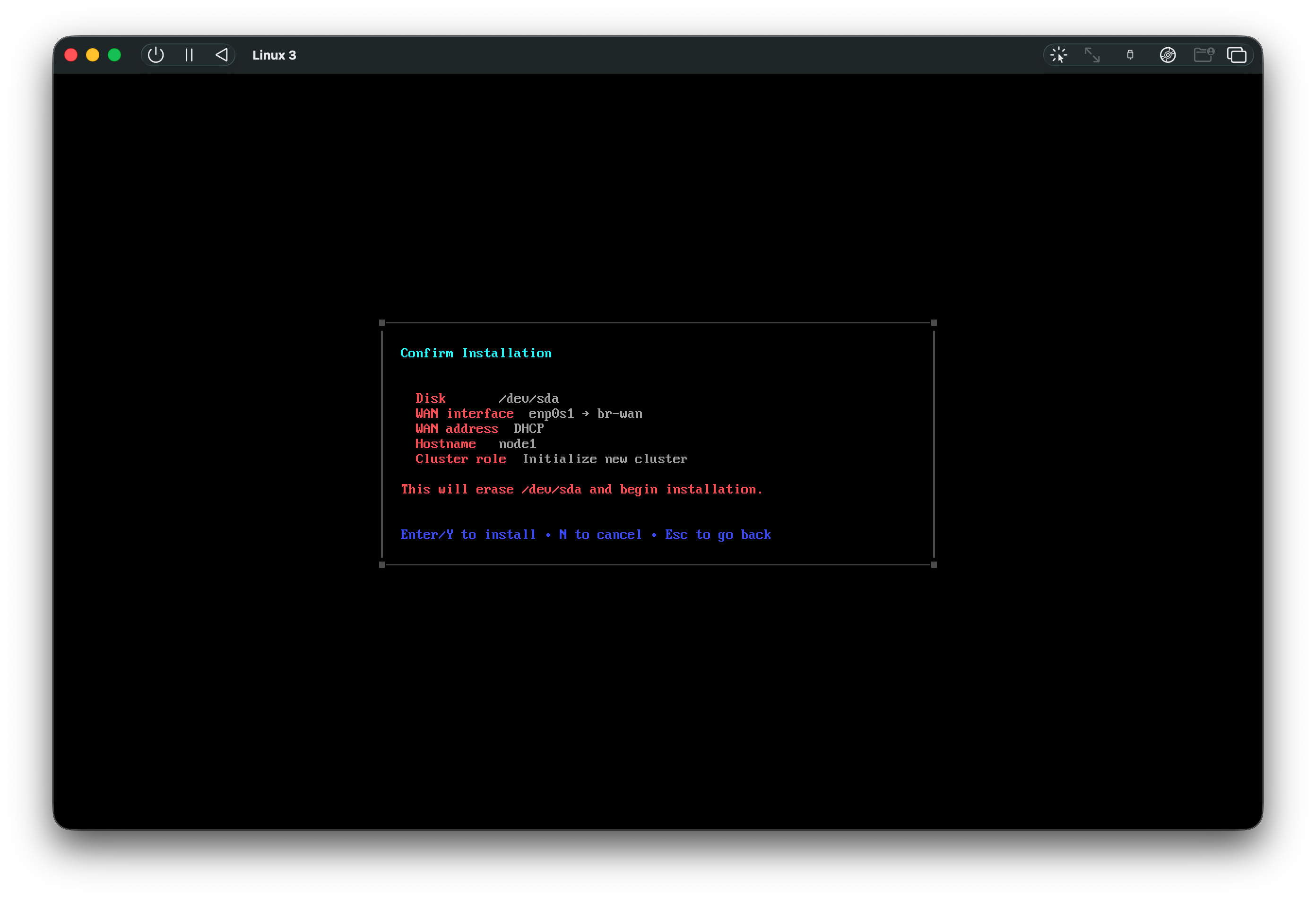
The installer will then complete the installation of Spinifex onto the target device. Once complete, remove the USB drive from the device before automatic reboot.
Once the USB drive is removed, press enter or wait for the auto-reboot.
Log In
The device will reboot and briefly finalise the install — setting the hostname and bringing up the configured network interfaces — then prompt for login. Use the following credentials:
- Login:
spinifex - Password: Set by user during installation
Both before and after login, a banner will be printed specifying important information, such as the node's addresses and how to reach the web dashboard.
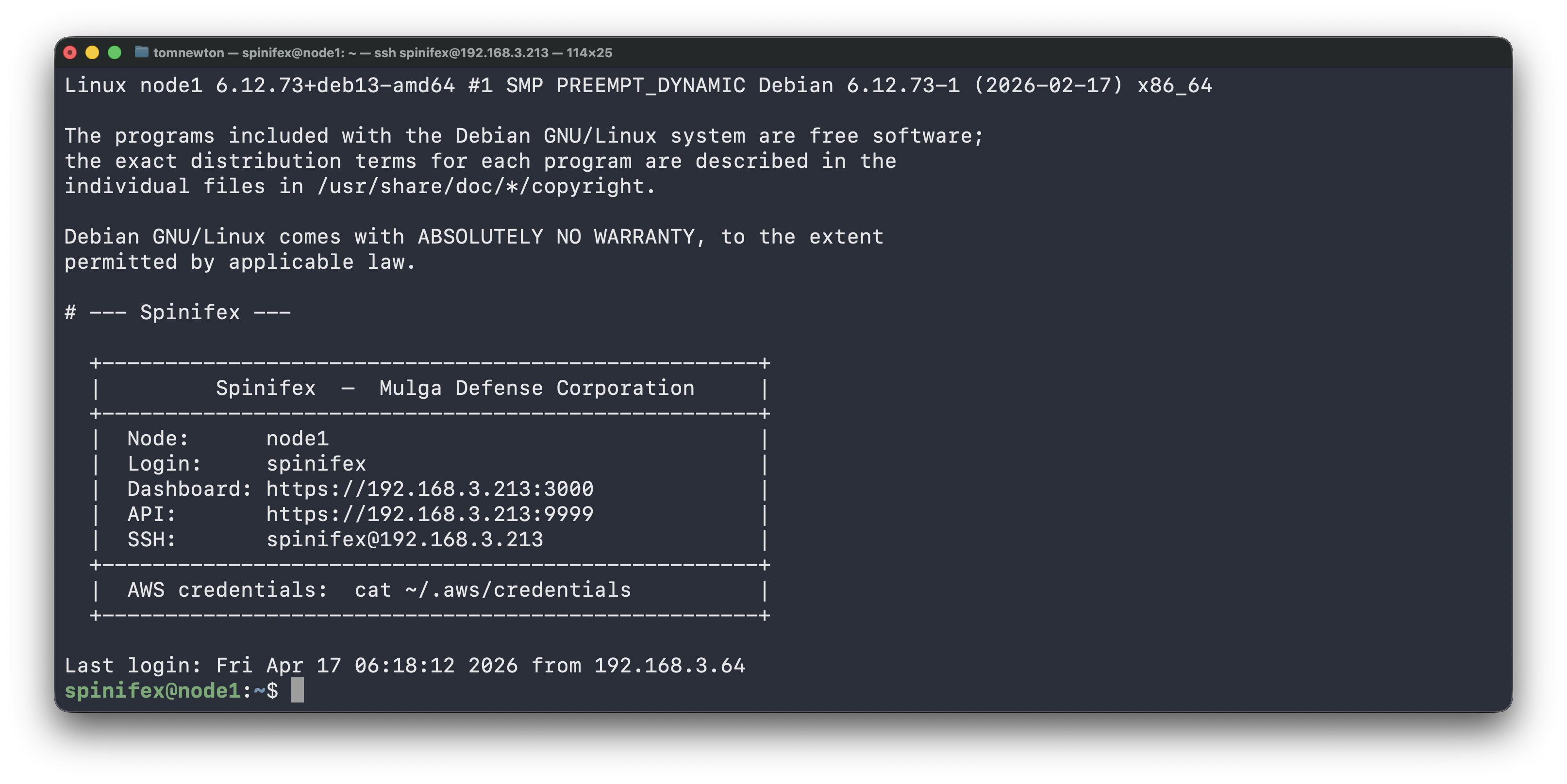
Start Using It
There is nothing left to configure. The node came up as a running single-node cluster: services are started, credentials are issued and networking is up. This is the point of installing from the ISO.
Web dashboard — browse to https://<node-address>:3000. It is served with the cluster's own CA, so expect a certificate warning on first visit.
AWS CLI — credentials were written during install, under the profile spinifex:
cat ~/.aws/credentials
AWS_PROFILE=spinifex aws ec2 describe-instance-types
That profile is the operator account, with administrator access. Copy it to your workstation to drive the node remotely — you will also need the cluster CA, available unauthenticated from https://<node-address>:3000/api/ca.pem.
From here, Setting Up Your Cluster walks through importing an AMI, creating a key pair and a VPC, and launching your first instance.
Building a Cluster
Skip this if one server is all you need.
To build a multi-node cluster, install from the ISO on every server first, following this guide on each one. Each comes up as its own working single node, and they are then joined together — the second and third servers discard the CA and master key they were installed with and adopt the first server's.
Install all of the servers before joining any of them. The first server's spx admin init waits for the others to join, and the join has to happen while it is waiting.
Then follow Multi-Node Install, and read Joining ISO-installed servers into a cluster below first — the firewall needs turning off while the cluster forms, and back on afterwards.
Joining ISO-Installed Servers Into a Cluster
Every ISO install comes up as a standalone cluster of one, with a firewall that allows cluster traffic only from servers it recognises as cluster members. Right after installation, the only member each server knows about is itself.
That is exactly what you want for a single server, and it is what gets in the way of building a cluster. Servers cannot recognise each other until the cluster is formed, and they cannot form the cluster until they can talk to each other. So the order is:
- Turn the firewall off on every server.
- Form the cluster.
- Turn the firewall back on. Each server now knows its peers and scopes itself to them automatically.
Step 1 — before you begin, on every server:
sudo /usr/local/lib/spinifex/spinifex-firewall-apply disablePublic ports — SSH, 443, 3000 (console), 8443 (S3), 9999 (AWS gateway) and 53 (DNS) — were already open and stay open. What this removes is the restriction on the internal cluster ports: OVN, NATS and the rest. Do this on every server, not just the first, because the servers talk to each other in both directions.
This leaves the internal cluster ports open to anything that can reach the server. On a machine facing the public internet, form the cluster promptly and complete step 3 as soon as it is up.
Step 2 — form the cluster: follow Multi-Node Install from Step 2 onwards.
Step 3 — once the cluster is up and verified, on every server:
sudo systemctl restart spinifex-daemonThe node rewrites its peer list from the cluster it is now part of and re-arms itself, including at boot. Confirm every server can see the others:
sudo nft list table inet spinifex_filterCheck the ip saddr { ... } addresses on the cluster-plane rules — the peer list is an nft variable expanded at load time, so it has no name of its own in the output. The addresses of all your servers should appear. If one is missing, that server's cluster traffic will be blocked — see Host Firewall.
Setup Complete
Congratulations! Spinifex is installed.
Once configured and started, continue to Setting Up Your Cluster to import an AMI, create a VPC, and launch your first instance.
Troubleshooting
Can't Access BIOS/UEFI to Change Boot Order
It can be difficult to get into the BIOS/UEFI — there is only a short window to press the correct key, and this key changes depending on the manufacturer. Search online for your device's BIOS/UEFI key, and press it rapidly as the device boots.
GRUB Menu Not Appearing
Once in the BIOS/UEFI menu, ensure the correct boot order is set. First boot priority should be set to the USB drive flashed with the ISO — if the USB doesn't appear in the BIOS/UEFI menu, ensure it has been flashed with the ISO correctly. Take note of the name and storage capacity of the USB when flashing, as this should match what appears in the BIOS/UEFI.
Networking Issues
For a Spinifex node to be properly provisioned, the target device must have at least one NIC.
Spinifex uses DHCP to assign instances within a node their public IP addresses. Instead of a static range, public IPs come from the upstream router's DHCP server. When a VM launches, Spinifex requests a DHCP lease from the router on behalf of the VM. When the VM terminates, the lease is released.
The VM itself never talks to the router's DHCP — it only sees its private VPC IP (from OVN's internal DHCP). The host-side DHCP conversation is invisible to the guest.
Use when: You don't control a static IP block but the router's DHCP server has enough leases. Homelabs where you don't want to carve out a range. Environments where IPs are managed centrally by the network team's DHCP.
For further troubleshooting suggestions, refer to the VPC Networking guide.